
First frame & last frame control
Video generation supports a first frame and last frame image to control the video’s start and end.
Where they appear in the UI
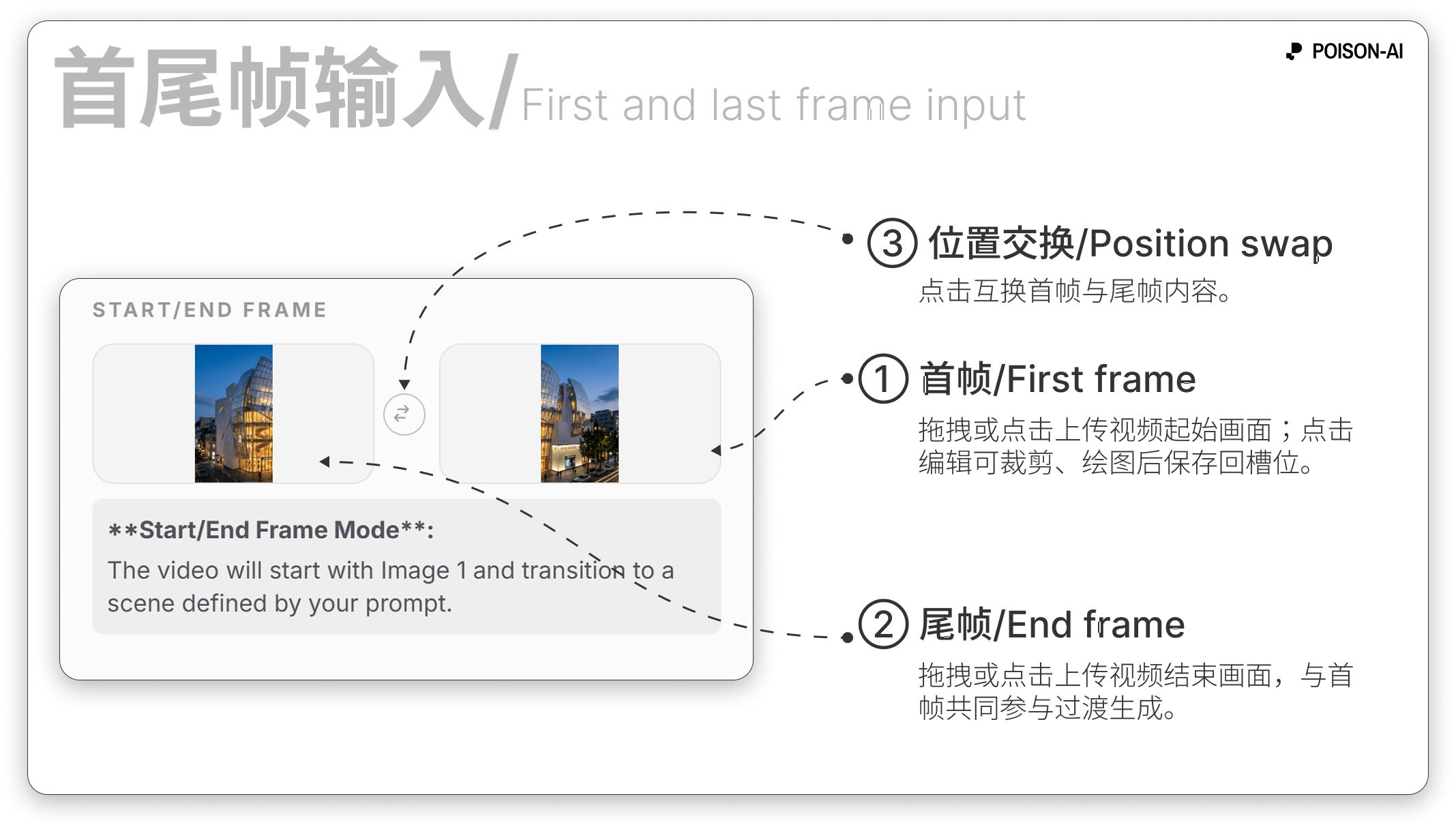
- In video mode, the left panel has a 「首尾帧输入」 (Start/End Frame) section.
- Image 1 = first frame (Start Frame), Image 2 = last frame (End Frame).
- The two slots are side by side with a swap button to exchange first and last frame.
How to upload
- Upload: Same as reference images in image mode — click or drag in each slot; Edit on a slot opens the video frame editor so you can crop, scale, or draw on the frame, then save back to that slot.
- Count: You can upload only the first frame (Image 1), only the last frame (Image 2), or both.
- Limits (per product): Max file size and formats follow product rules (e.g. 15MB, common image formats). After upload, the system adapts first/last frame to the selected video aspect ratio (16:9 or 9:16) before submitting, so they match the output video.
What first and last frame do
- First frame only (Image 1): The video starts from this image; the rest is driven by your prompt (and lens preset) — i.e. image-to-video.
- First + last frame (Image 1 + Image 2): In-app this is first+last frame mode — the video starts at Image 1 and transitions to the scene described by your prompt; the last frame (Image 2) is used with the first to shape or guide the ending. Exact behavior depends on the video model.
- Last frame only (Image 2): Whether “last frame only, no first frame” is supported depends on the product; assume generation requires at least a first frame or prompt/lens.
Relation to resolution and aspect ratio
- Before submit, first and last frame are adapted to the selected video aspect ratio (16:9 or 9:16) — e.g. crop or scale — then sent to the video service.
- Video resolution (720p / 1080p) sets output size; adaptation of frames and resolution are separate: first adapt by aspect ratio, then generate at the chosen resolution.
Summary
| Item | Description |
|---|---|
| First frame | Image 1; video start; can be used alone (image-to-video). |
| Last frame | Image 2; when used with first frame, helps define or transition to the end. |
| Upload | Click/drag; edit then save to slot; can swap Image 1 / Image 2. |
| Limits | File size and format per product; frames are adapted to video aspect ratio before submit. |
If the product adds “last frame only” or other modes, follow the in-app UI.