
Video mode layout
Video mode shares the same layout as image mode: the left panel is the same, with controls switched to video-specific ones; the right side remains the infinite canvas and vertical toolbar.
Layout (left–right)
- Left: Fixed width; in video mode it includes: Logo, mode switch, prompt, first/last frame input, lens presets, video resolution and aspect ratio, and the Generate button.
- Center & right: Same infinite canvas; video results appear as cards on the canvas; the right edge still has History, Undo, Redo, Fit to screen.
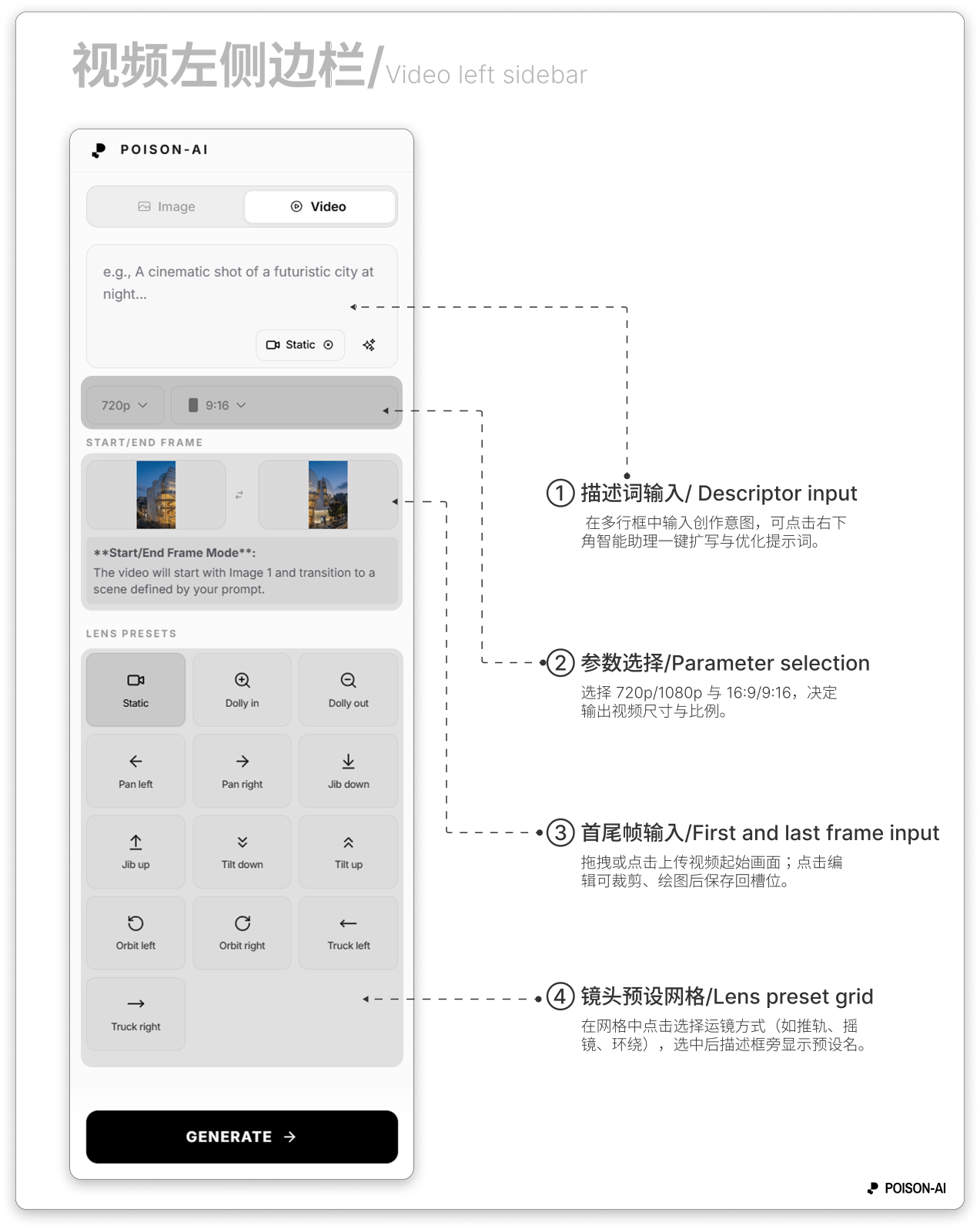
Left panel (video mode, top to bottom)
Header
- Same as image mode: Poison Logo.
Mode switch
- Image | Video; Video is highlighted in video mode.
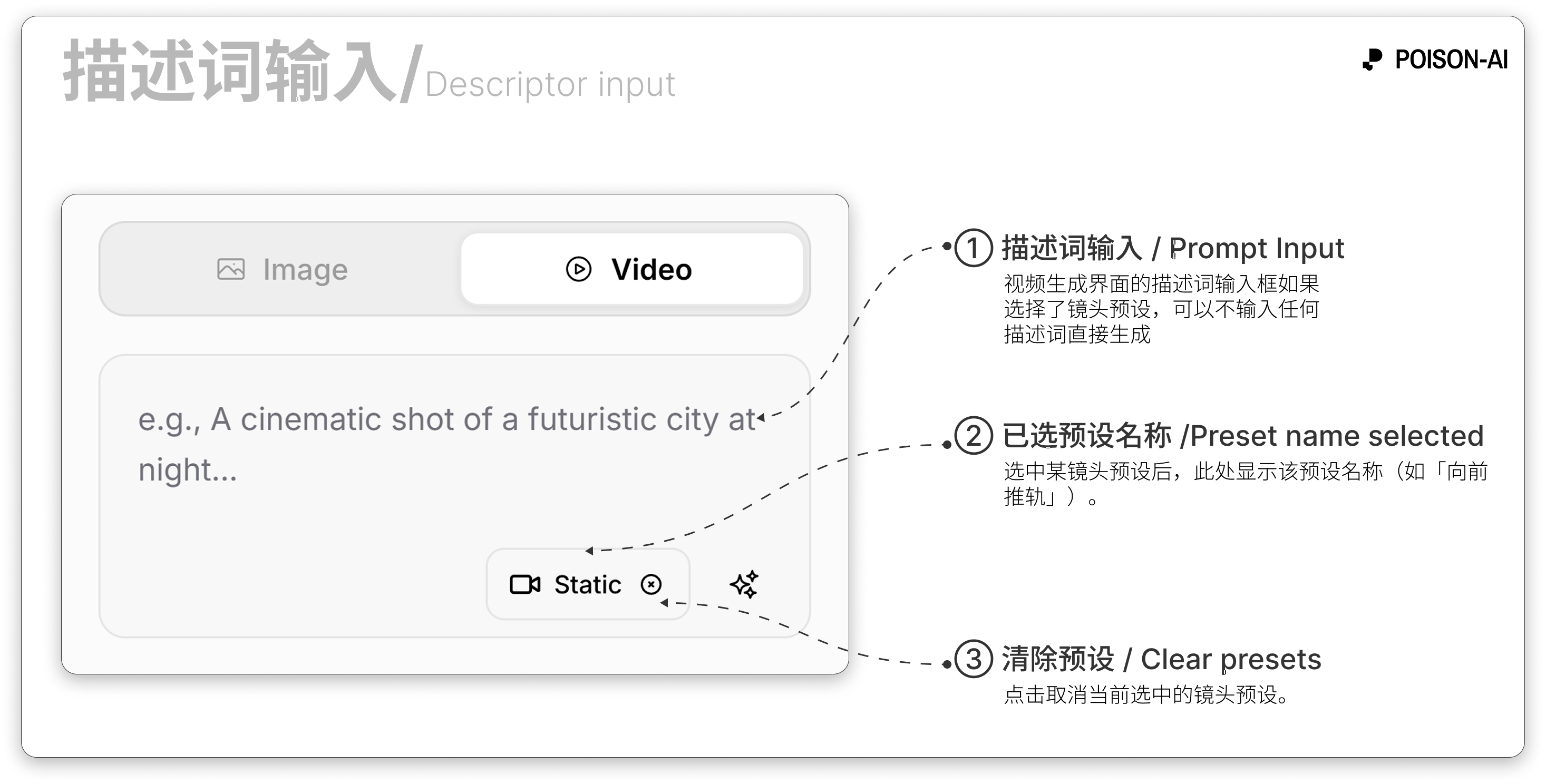
Prompt input
- Placeholder: e.g. "A cinematic shot of a futuristic city at night...".
- Smart Assistant remains at bottom-right; if a lens preset is selected, the preset name (e.g. “Dolly in”) and a clear button appear next to the prompt box.
- First / last frame input
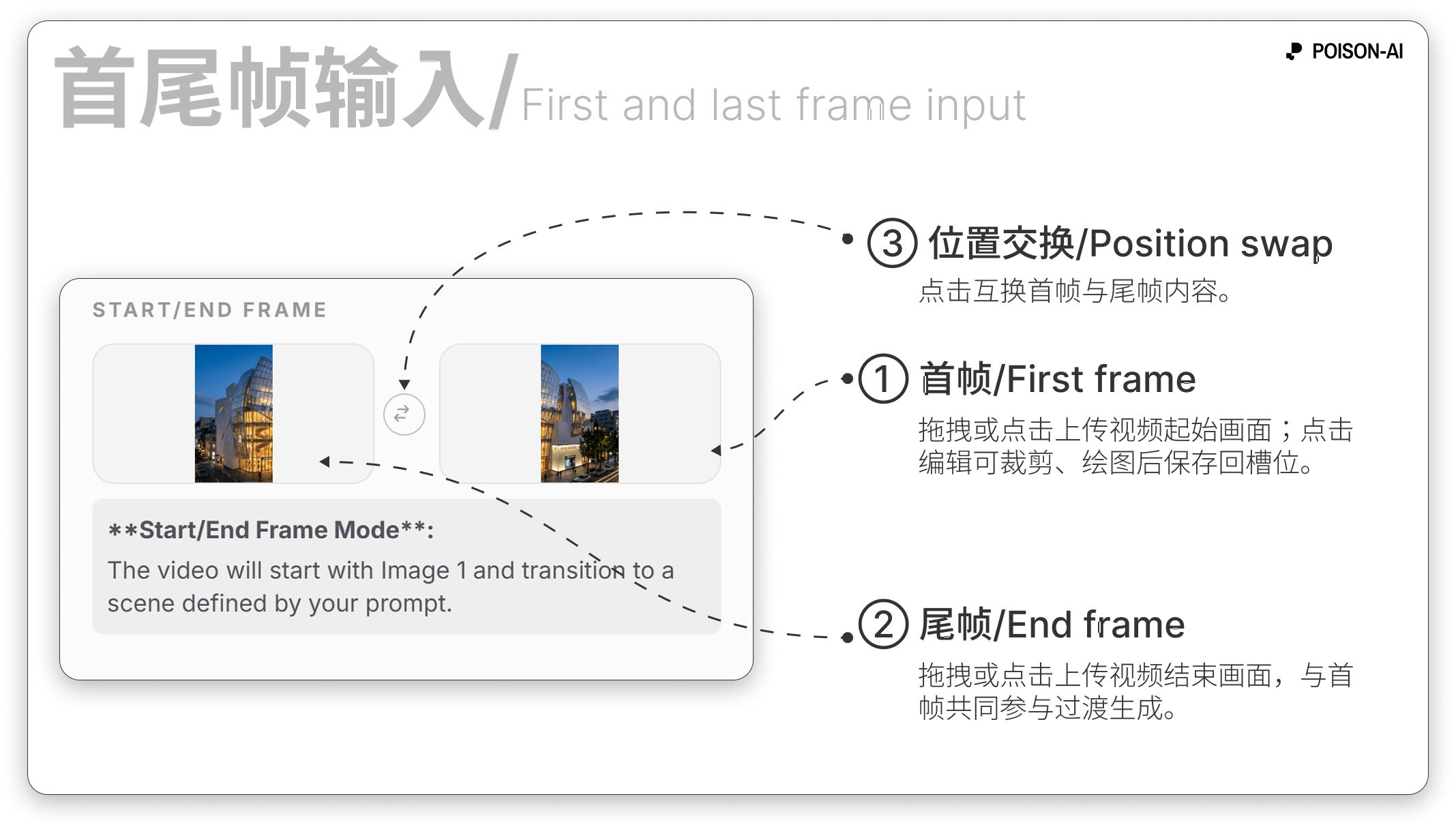
- Title: 「首尾帧输入」 / "Start/End Frame".
- Image 1 (first frame) and Image 2 (last frame) slots with a swap button between them; each slot supports upload and Edit (opens the video frame editor).
- When both slots have images, the UI explains first+last frame mode: the video starts from Image 1 and transitions to the scene defined by your prompt (Image 1 = first frame, Image 2 = last frame, both used with the prompt).
- Lens presets
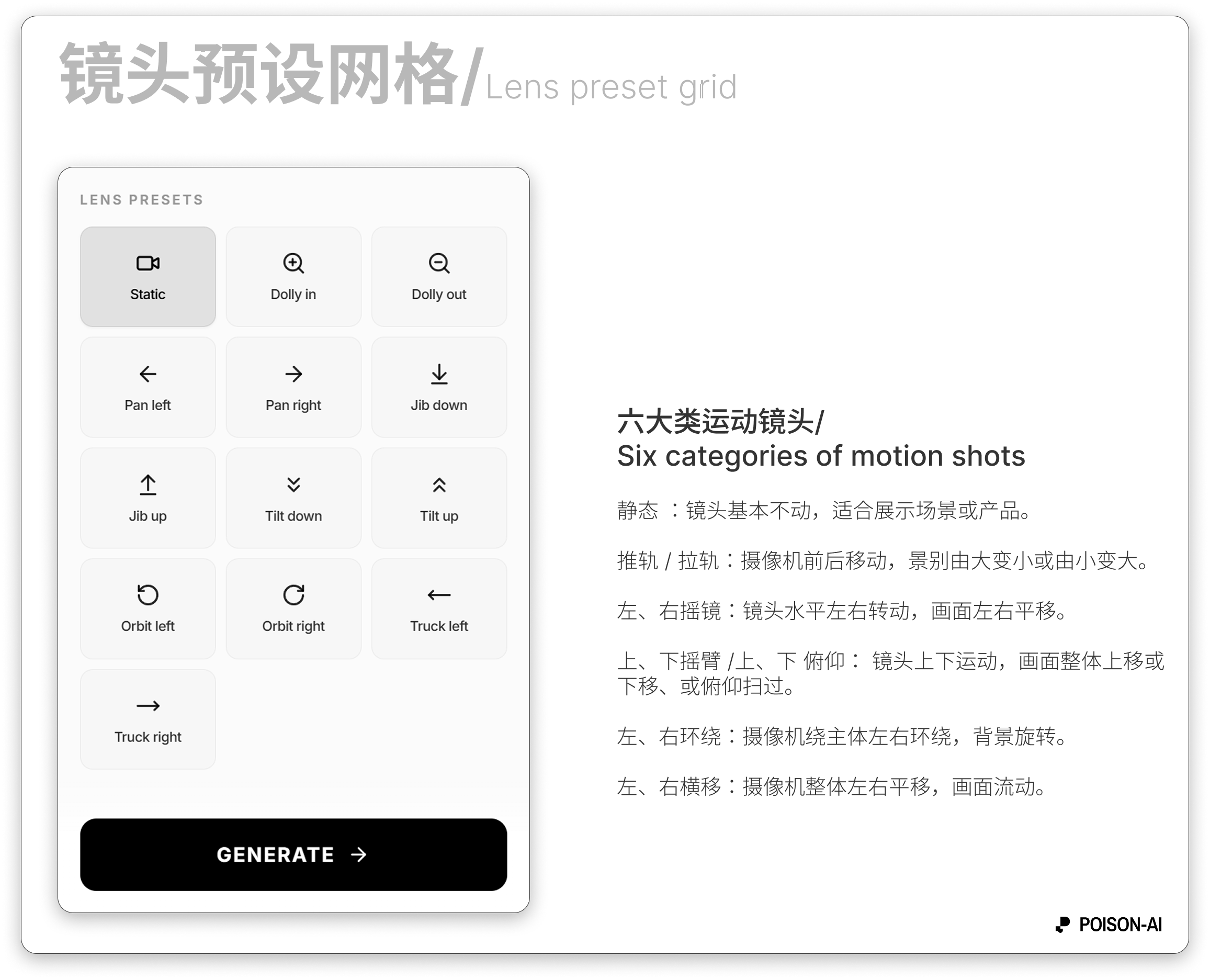
- Title: 「镜头预设」 / "Lens Presets".
- Grid of lens preset buttons (e.g. Static, Dolly in/out, Pan left/right, Jib down/up, Tilt down/up, Orbit left/right, Truck left/right); click to select or clear. When selected, the preset name appears next to the prompt with a clear control.
- Full list and effect descriptions: Lens presets.
- Video dropdowns (when present)
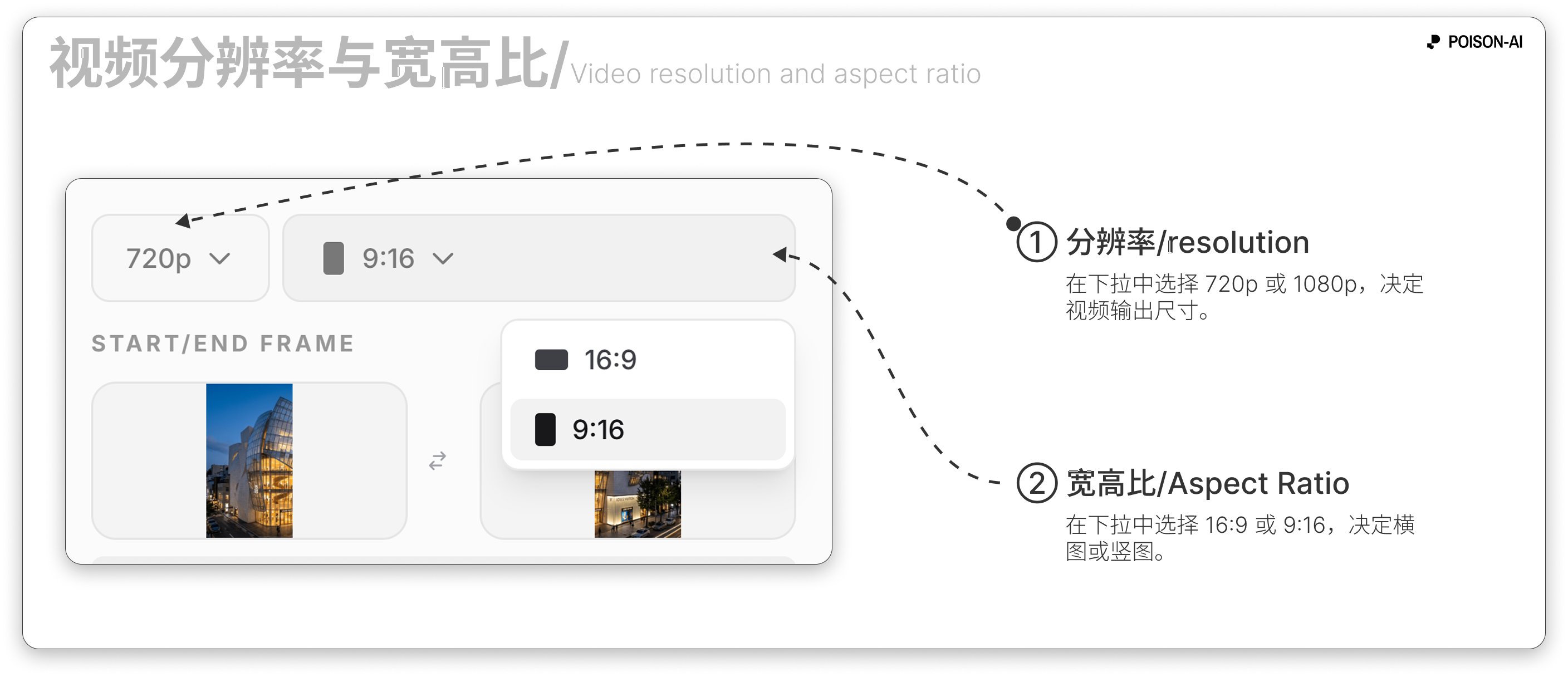
- Video resolution: 720p / 1080p.
- Video aspect ratio: 16:9 / 9:16.
- Exact placement (same row as prompt or separate) follows the in-app UI.
- Generate button
- Main Generate button at the bottom. In video mode it is enabled when at least one of: prompt text, a lens preset selected, or at least one image (first frame) is present; otherwise it is disabled.
Center & right: canvas
- Same as image mode: the infinite canvas shows video result cards; you can zoom, pan, and multi-select.
- Video cards support play, download, reuse, etc.; the right toolbar still has History, Undo, Redo, Fit to screen.
Summary
| Area | Video mode contents |
|---|---|
| Left | Logo → Image/Video switch → Prompt + Smart Assistant (+ optional lens tag) → First/last frame (Image 1/2) → Lens presets → Video resolution/aspect ratio → Generate button |
| Center/right | Infinite canvas + video result cards; right edge: History / Undo / Redo / Fit to screen |
First and last frame upload, limits, and behavior: First / last frame control. Full lens preset list and effects: Lens presets.